🖥️ Controlling the Robot in Simulation
Please create an issue for any missing library, package, driver, error, or any kind of unclear instruction.
In this section, the core tasks of simulation, teleoperation, and navigation are explained, along with instructions on how to run them.
⚙️ Workspace Setup
When you first enter the container, the workspace has not been built yet. You must build it before launching anything:
a2 build
After making any code changes, rebuild the workspace. To perform a full clean rebuild:
a2 clean
a2 build
👀 Launching the Simulation
Zenoh middleware is configured automatically on every shell startup via
scripts/setup.sh. It setsROS_DOMAIN_ID, points nodes at the router IP, and prints a summary like:[a2_ros] Zenoh: localhost [a2_ros] Zenoh session config: /home/ubuntu/.tmp/zenoh-ros2-config.sim.json5 [a2_ros] ROS_DOMAIN_ID=30The Zenoh router starts automatically with
docker compose up -d a2_ros_dev. If you do not see the summary above, check that the router is running withdocker compose logs -f zenoh_router_sim.
Launch the base simulation (no visualisation):
a2 source
a2 sim
Launch the simulation with RViz:
a2 sim --rviz
Launch the simulation with a specific scene:
a2 sim --scene <scene_name>
(e.g a2 sim --scene scene_test_meshes.xml)
a2 sim also accepts --dlio to use DLIO LiDAR-inertial odometry instead of ground-truth TF (run a2 dlio in another terminal).
The following scenes are available:
| Scene | Use case |
|---|---|
scene.xml |
Default scene loaded when no --scene is given. |
scene_flat.xml |
Flat ground — use to verify all sensors are functioning correctly. |
scene_terrain.xml |
Uneven terrain — use to test sensors on a simple scene with objects and rough terrains. |
scene_maze.xml |
Enclosed maze — use to test navigation and exploration. |
scene_obstacles.xml |
Open area with obstacles — use to test navigation and exploration. |
scene_test_meshes.xml |
Scene with mesh objects — use for object detection tasks. |
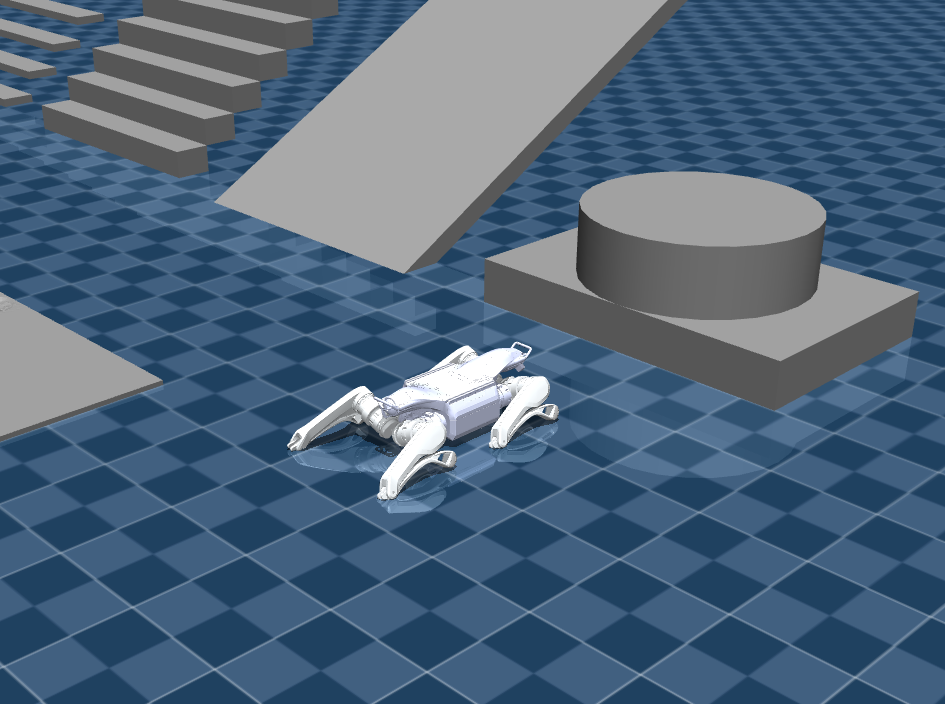
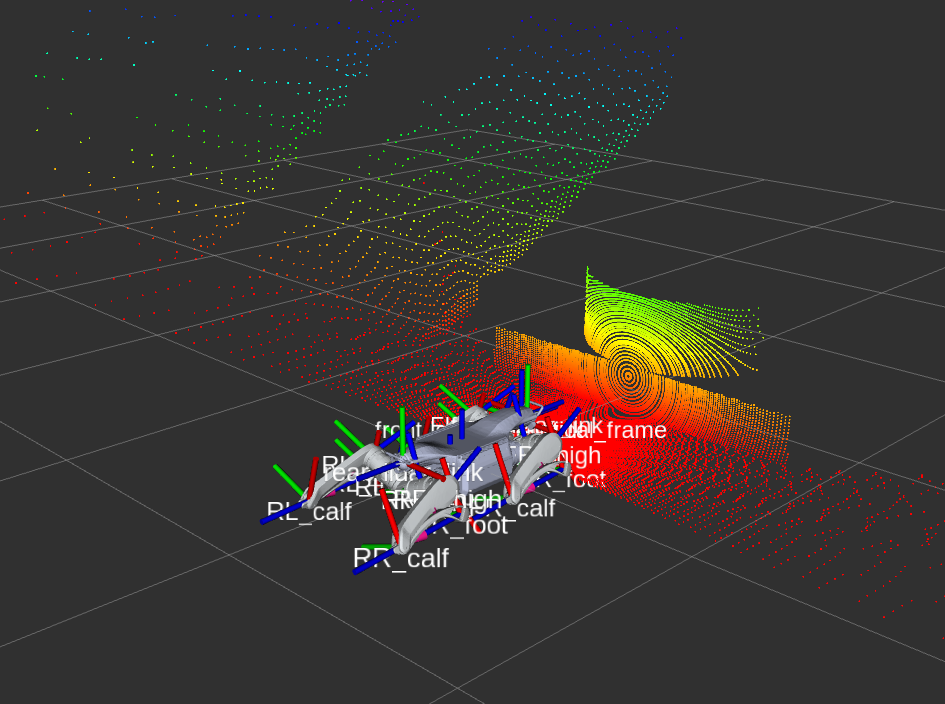
The corresponding visualization on RViz looks like this:
🎮 Teleoperation
The robot spawns in a resting position (lying down). Bring it up through the locomotion FSM with the a2 CLI. With a2 sim already running in one terminal, run the following in a second terminal, in order:
a2 stand     # stand up
a2 unlock    # release to balance stand
a2 walk      # start walking
Once in walk mode, use these to stop and sit back down:
a2 stop      # stop moving (keeps balance)
a2 sit       # sit / stand down
To drive the robot manually with the keyboard, run the following in its own terminal once the robot is in walk mode. It publishes /cmd_vel from your key presses using the teleop_twist_keyboard package:
a2 keyboard
The gamepad controls in the Controlling the Physical Robot section are for driving the real robot. In simulation, use
a2 keyboardfor manual driving.
🧭 Navigation
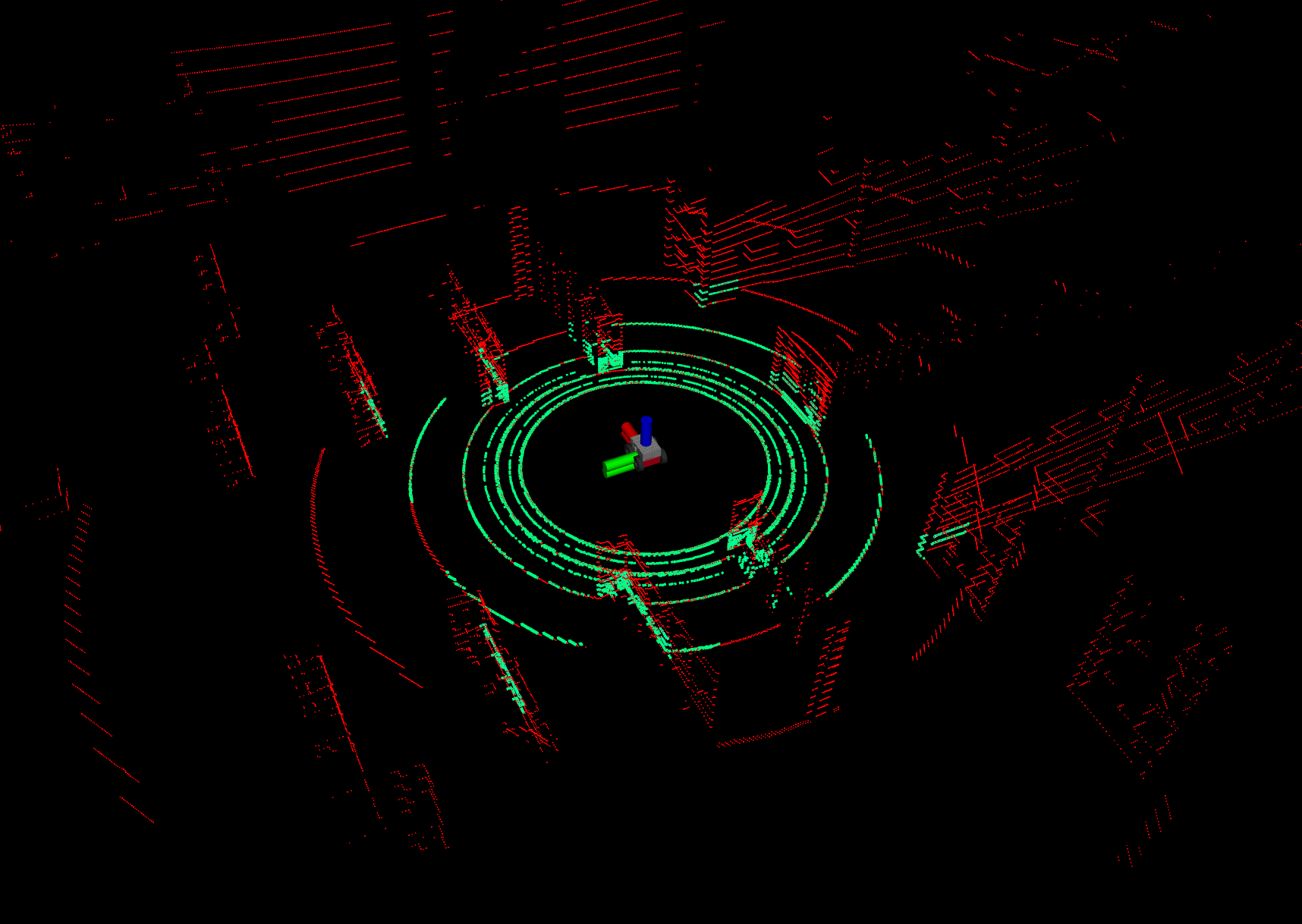
Autonomous navigation requires the simulation, locomotion controller, and navigation stack to be running concurrently. Start by launching the simulation with an appropriate scene — refer to the scene table in the Launching the Simulation section. Then ensure the robot is in walk mode before launching navigation, following the same stand and walk steps from the Teleoperation section.
a2 nav --rviz
Once all nodes are running, use the 2D Nav Goal tool in RViz to set a target pose for the robot.
🔍 Exploration
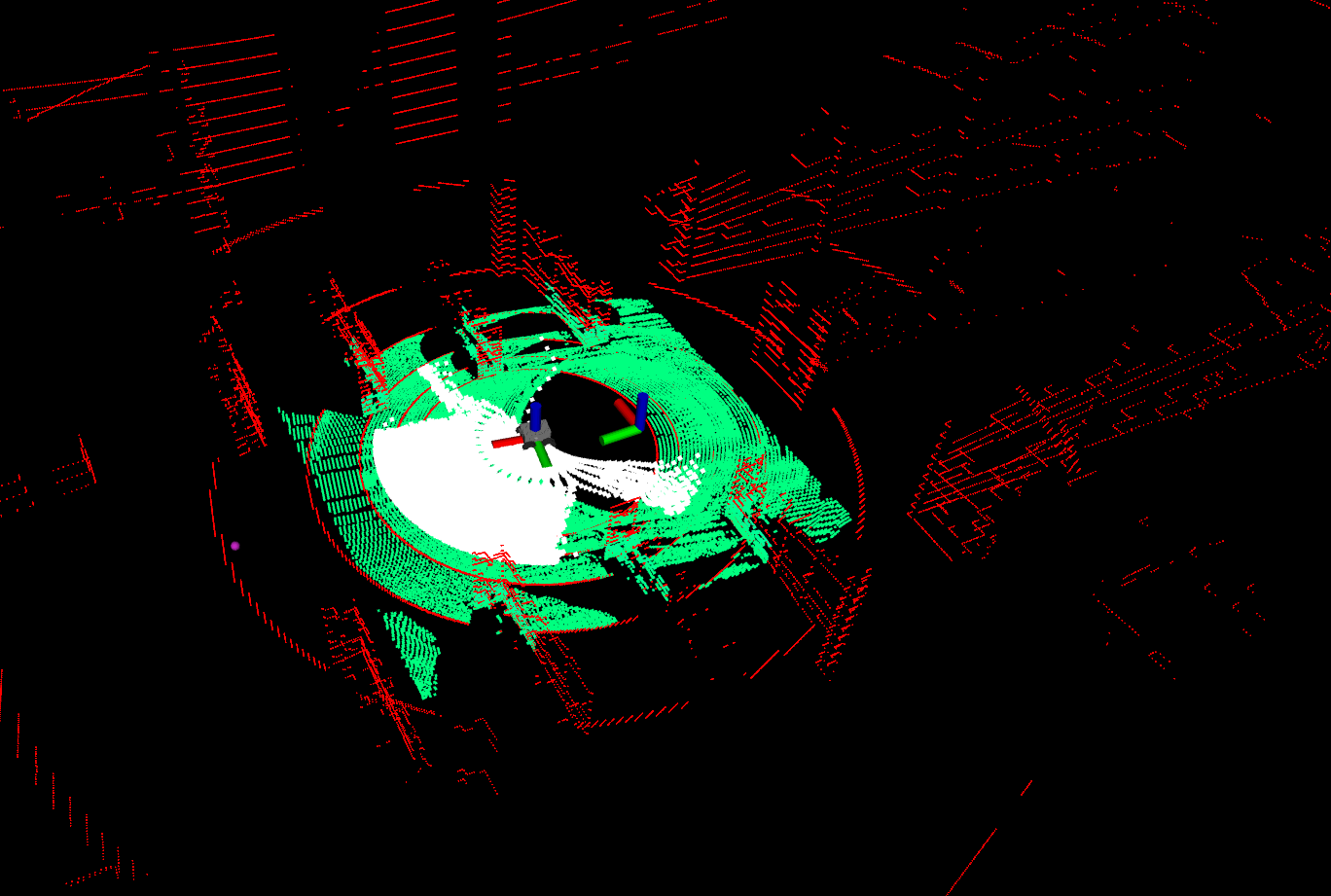
Fully autonomous exploration uses the TARE planner with ground truth localisation.
Ensure the robot is in walk mode before launching exploration. Follow the same stand and walk steps from the Teleoperation section.
a2 explore --rviz
🕵️♂️ Object Detection
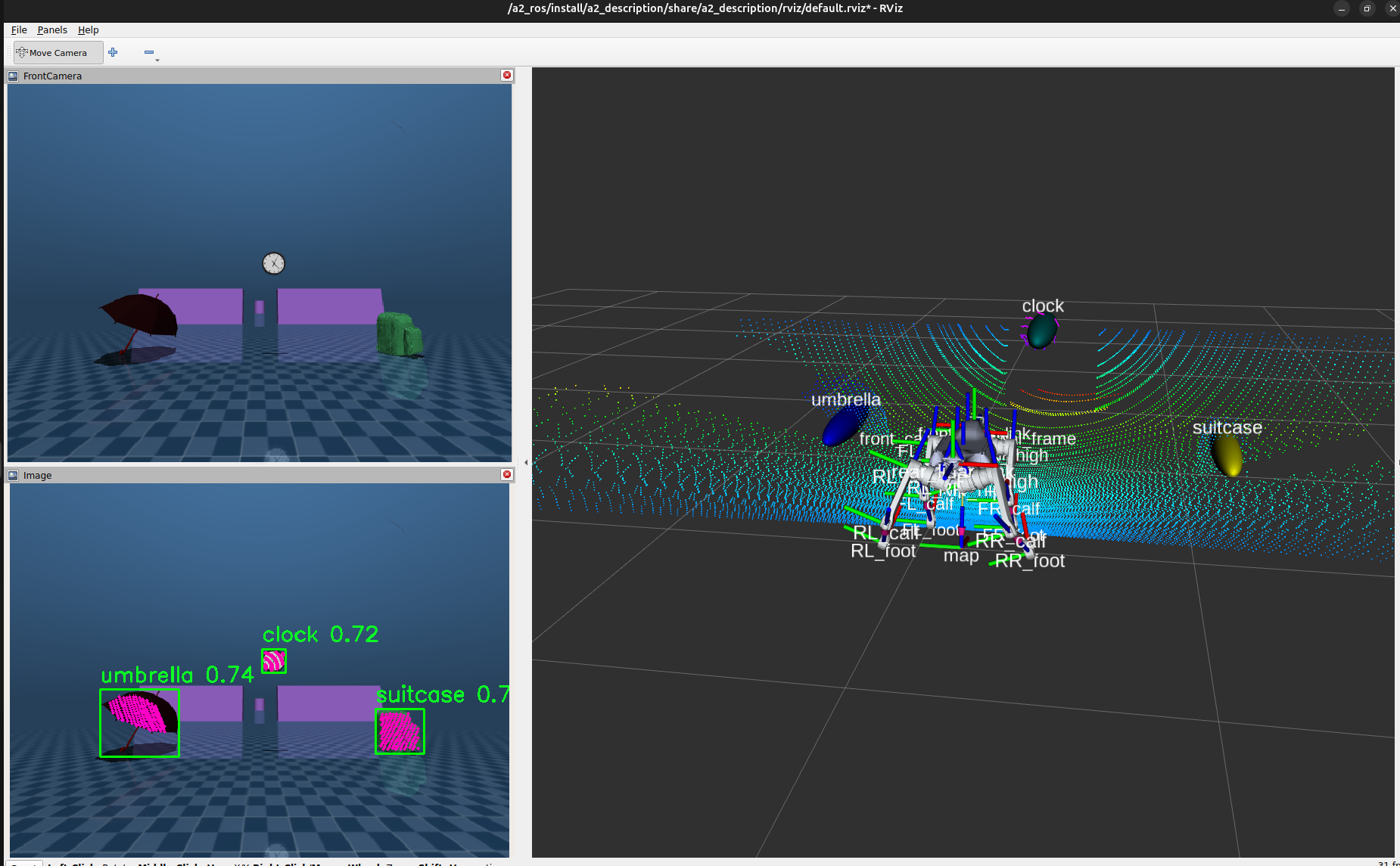
This section demonstrates object detection on the A2 using a YOLOv5 model. Several other YOLOv5 model sizes are available on the GitHub release page. Smaller models run faster with lower compute cost, while larger models are more accurate but require more processing time.
1. Download the model:
wget -P /a2_ros/src/object_detection/object_detection/models https://github.com/ultralytics/yolov5/releases/download/v7.0/yolov5l6.onnx
2. Build the object detection packages using the workspace build script, then launch the simulation with scene_test_meshes.xml (see the scene table in the Launching the Simulation section).
3. Launch the object detection node (ONNX Runtime) with the a2 CLI:
a2 detect
On the real robot,
a2 detectrunsobject_detection_real.launch.pyautomatically.
Visualizing Detections
The detections can be viewed using RViz in two ways:
- Bounding boxes: Add the
Imagedisplay fromrviz_default_pluginsand set the topic todetections_in_imageto view bounding boxes overlaid on the camera feed. - Poses: Add a
PoseArrayorMarkerArraydisplay and set it to the relevant detection pose topic to visualise the estimated poses of detected objects in 3D.
🛰️ State Estimation (DLIO)
DLIO (Direct LiDAR-Inertial Odometry) provides odometry from the LiDAR and IMU instead of the simulator’s ground-truth TF. Launch it in its own terminal:
a2 dlio --rviz
To make the rest of the stack consume DLIO odometry, start the simulation with the --dlio flag (a2 sim --dlio) and run a2 dlio alongside it.
📊 Visualisation with Foxglove
In addition to RViz, the full stack can be visualised in Foxglove Studio. A prebuilt layout ships with the workspace at docs/rss26_layout.json.
Download and install Foxglove Studio from foxglove.dev/download.
1. Start the Foxglove bridge — it exposes ROS topics over a WebSocket at ws://localhost:8765 (in simulation it is launched with use_sim_time so timestamps track /clock):
a2 foxglove
2. Connect and load the layout in Foxglove Studio (desktop or web app):
- Add a connection → Foxglove WebSocket →
ws://localhost:8765. - Layouts → Import from file… → select
docs/rss26_layout.json.
The layout contains:
| Panel | Shows |
|---|---|
| 3D | Robot model + TF, front/rear lidar (/mujoco/front_lidar, /mujoco/rear_lidar), /registered_scan, terrain maps, navigation paths/goals, and TARE exploration markers |
| Image | /camera/image_raw with object-detection overlays (/detection_annotations, /detections_in_image) |
| Transform Tree | Live TF tree |
| Joystick | Live gamepad input |
The
/detection_annotationsoverlay only appears when the object-detection node is running (a2 detect). You can also send navigation goals straight from the 3D panel using the/goal_point(far_planner) publish control.
💾 Recording & Playback
Record ROS 2 topics to MCAP and replay them with the a2 CLI. Bags are written to the bag directory — $ROS_BAGS_DIR, default /a2_ros_ws/bags in the container (bind-mounted to ./bags on the host) — named bag_<timestamp>[_suffix].
Record — choose what to capture (--all, --topics, or a --config YAML); stop with Ctrl+C:
a2 bag record --all run1                              # everything, suffix "run1"
a2 bag record --all --ignore '/camera/image_raw'      # all except some topics
a2 bag record --topics '/cmd_vel /odom /registered_scan' nav_test
A --config YAML can set all:, topics:, and ignore: (see a2 bag record --help).
Play back — pass just the bag name (resolved against the bag dir) or a full path:
a2 bag play bag_<timestamp>_run1                  # from the bag dir
a2 bag play bag_<timestamp>_run1 --clock --pause  # publish /clock, start paused