🛠️ Getting Started with the A2 ROS Workspace
Important: Please create an issue for any missing library, package, driver, error, or any kind of unclear instruction related to the A2 ROS workspace.
The a2_ros workspace is an all-in-one development environment for the Unitree A2. It contains all the necessary packages, tools, and configurations to develop, simulate, and deploy the A2 stack. The workspace uses Docker to provide a reproducible, containerised development environment.
This guide has been tested on Ubuntu 24.04, and the steps should be similar for other Linux distributions. macOS is also supported via Docker Desktop and the browser-based VNC desktop (see Browser Desktop via VNC); Windows support is experimental.
Prerequisites
Run the following commands directly in your machine’s terminal. (Linux shortcut: Ctrl + Alt + T)
Git
Make sure Git is installed on your system: git-scm.com/downloads. After installing, set your name and email so your commits are properly attributed:
git config --global user.name "Your Name"
git config --global user.email "you@example.com"
Setting up an SSH key for GitHub
Using an SSH key lets you push and pull without entering your password each time. Follow GitHub’s official guides:
- Generate an SSH key — Generating a new SSH key
- Add the key to your GitHub account — Adding a new SSH key
-
Test the connection — Testing your SSH connection. Run:
ssh -T git@github.comOn success you should see a message like:
Hi <username>! You've successfully authenticated, but GitHub does not provide shell access.
From now on, clone repositories using the SSH URL (e.g. git@github.com:user/repo.git) rather than HTTPS.
The same SSH key (typically
~/.ssh/id_ed25519) can be reused for other SSH connections, such as connecting to remote robots — not just GitHub.
Docker
Linux: Install Docker Engine for your Linux distribution (Ubuntu, Debian, Fedora, etc.). Use Docker Engine, not Docker Desktop.
macOS: Install Docker Desktop. You will also need to enable host networking (see the note below) and use the browser-based VNC desktop for GUI apps.
Post-installation steps
By default, Docker requires sudo for every command. To run Docker as your regular user, add yourself to the docker group:
sudo groupadd docker          # create the group (may already exist)
sudo usermod -aG docker $USER # add your user to it
newgrp docker                 # apply changes without logging out
Then verify it works without sudo:
docker run hello-world
For more details, see the official Linux post-installation steps.
The
dockergroup grants root-level privileges. Only add trusted users to it.
Verify your installation
docker --version
macOS / Windows (Docker Desktop): Enable host networking under Settings → Resources → Network (requires Docker Desktop 4.34 or later). This is needed for ROS 2 / Zenoh discovery and to reach the browser VNC desktop on
localhost:8444. On macOS and Windows, host networking operates at the TCP/UDP level only — lower-level protocols are not supported. A free Docker account and sign-in are required.
VSCode and Dev Containers Extension
Dev Containers let VS Code open a folder inside a Docker container and provide a built-in Docker view so you can inspect and manage the running container directly from the editor.
- Ensure VSCode is installed and up to date.
- Only for non-Linux users: Make sure Docker is running before opening the Dev Container.
- Install the Dev Containers extension in VSCode.
- Later you can then open project folders in VSCode, with: (
Ctrl+Shift+P) and select Dev Containers: Reopen in Container. - (The first launch can take several minutes while the container image is pulled and built. Subsequent opens will be much faster.)
Setting Up the Workspace
We strongly recommend forking the main repository to your GitHub account before cloning. This allows you to save your changes and customisations. See how to fork a repository on GitHub.
1. Clone the repository and its submodules:
If you have forked the repository, replace the URL below with your fork’s SSH URL (e.g. git@github.com:<your-username>/a2_ros.git).
git clone git@github.com:ETHZ-RobotX/a2_ros.git --recursive
2. Run the first-time setup script:
Change into the cloned directory and run the dev environment setup script once. This writes your host UID and GID into .env so the Docker image is built with matching file ownership:
cd a2_ros
./scripts/setup_devenv.sh
The
.envfile is gitignored and personal to your machine. You can (but don’t have to) override the following variables in it to customise the runtime:
| Variable | Purpose | Default |
|---|---|---|
RMW_IMPLEMENTATION |
Selects the middleware (rmw_zenoh_cpp or rmw_cyclonedds_cpp) |
rmw_zenoh_cpp |
ROS_DOMAIN_ID |
ROS 2 domain for the Zenoh (sim) path | 30 |
ZENOH_ROUTER_IP_SIM |
Router address sim nodes connect to | 127.0.0.1 |
ZENOH_ROUTER_IP_ROBOT |
Router address robot nodes connect to | 127.0.0.1 |
ZENOH_ROUTER_IP |
Shared fallback used if the per-profile vars are unset | 127.0.0.1 |
ROS_BAGS_DIR |
Host directory bind-mounted to /a2_ros_ws/bags |
./bags |
The
.envfile is also sourced by all setup scripts inside the container, so any runtime override you add there is picked up automatically.
Spawning the Docker Container
1. Build and start the a2_ros_dev service using Docker Compose:
docker compose build a2_ros_dev
docker compose up -d a2_ros_dev
The first run will pull the base Docker image and may take several minutes. You might see an
ERROR importing cache manifest from a2_ros:dev—this is of no concern. Subsequent launches will be much faster.
a2_ros_devbuilds on top of the prebuilta2_baseimage, which CI publishes multi-arch (x86_64 and arm64 — Apple Silicon works) to GHCR. The base is therefore pulled, not built locally. After CI publishes a new base, refresh it withdocker compose build --pull a2_ros_dev(a plainbuildkeeps the cached base).
This also starts the zenoh_router_sim compose service automatically (the Zenoh router is a per-machine singleton that all ROS 2 nodes need). Verify it is running with:
docker compose logs -f zenoh_router_sim
You should see a line like Started Zenoh router with id .... If you need to run the router manually inside the container instead (e.g. for debugging), use:
scripts/start_zenoh_router.sh
Run only one Zenoh router per host —
zenoh_router_simbinds TCP port 7447. For a multi-machine setup, run the router on one host and setZENOH_ROUTER_IP_SIMin.envon the other machines.
2. Enter the container:
(Ctrl+C first, if you still see the Zenoh logs (above))
docker compose exec a2_ros_dev bash
Building the Workspace
Docker builds the workspace automatically on first entry. After making modifications, use the a2 CLI to rebuild:
a2 build          # rebuild the workspace
a2 clean          # remove build artifacts (prompts for confirmation)
a2 clean --yes    # remove build artifacts without confirmation
You can ignore all warnings that appear during the build as long as it
[INFO] Build completein the end.
The a2 CLI is a thin wrapper around the scripts in scripts/. Here is a brief description of each underlying script:
| Script | Description |
|---|---|
setup_devenv.sh |
Run once from the repo root before first launch. Writes your host UID/GID into .env so Docker builds containers with matching file ownership. |
build_workspace.sh |
Builds the ROS 2 workspace with colcon. Also patches Unitree message packages automatically. |
clean_workspace.sh |
Removes build artefacts (build/, install/, log/) with a confirmation prompt. Use before a full rebuild. |
setup.sh |
Sources the workspace and sets environment variables for MuJoCo and ROS 2 middleware. Run automatically on every shell startup inside the container. |
start_zenoh_router.sh |
Starts the Zenoh router in the foreground. Use for debugging — under normal operation the router starts automatically as a compose service. |
init_submodules.sh |
Initialises and pulls all Git submodules. |
verify_mujoco.sh |
Verifies the MuJoCo installation by opening the viewer, or checking the shared library in headless environments. |
Visualising GUIs
X11 Forwarding (Linux)
X11 forwarding is handled automatically on Linux. The compose file mounts the X11 socket (/tmp/.X11-unix) and your X authority cookie into the container, and passes DISPLAY through as an environment variable. No manual setup is required — any GUI launched inside the container will render directly on your host display.
Some rendering issues may occur when resizing windows, particularly in RViz.
Browser Desktop via VNC (macOS / Windows)
macOS and Windows hosts have no native X server, so the workspace ships an opt-in KasmVNC desktop: a lightweight XFCE session running inside a container that you view in your browser. GUI apps render onto display :20 and are streamed to your browser on port 8444 — no separate VNC client needed.
The VNC desktop is reachable from the host only with Docker Desktop “host networking” enabled (Settings → Resources → Network; requires Docker Desktop 4.34 or later). Enable it before starting the service.
The vnc service is gated behind the vnc compose profile, and the compose.vnc.yml overlay shares the VNC X socket with a2_ros_dev. Bring everything up with both compose files:
docker compose -f compose.yaml -f compose.vnc.yml --profile vnc up -d
The first run also builds the
vncimage (KasmVNC + XFCE on top of the dev image), which can take several minutes.
Then open https://localhost:8444 in your browser (accept the self-signed certificate) and log in:
| Field | Value |
|---|---|
| Username | ubuntu |
| Password | robotx (default — override with the VNC_PASSWORD build arg) |
If your browser cannot connect over HTTPS, try
http://localhost:8444— the bundled KasmVNC config serves over plain HTTP.
Now just work in a2_ros_dev as usual — enter the container and launch the stack normally. DISPLAY=:20 is already the default there, so any GUI app (RViz, the MuJoCo viewer, …) renders straight onto the browser desktop with no extra flags:
docker compose exec a2_ros_dev bash
a2 sim --rviz
You can also open a terminal directly in the XFCE session in the browser and run the same commands there — it’s the same workspace on the same Zenoh graph.
There is no GPU inside Docker on macOS/Windows, so OpenGL apps are software-rendered (
LIBGL_ALWAYS_SOFTWARE=1, set automatically). Expect lower frame rates than on native Linux.
🍎 macOS (Experimental)
Experimental: The workspace is developed and tested on Linux (Ubuntu 24.04). macOS support is experimental — the steps below get the container running, but networking and GUI behaviour are not as well tested. If you hit problems, please create an issue. For the smoothest experience we still recommend Linux.
Apple Silicon (M1/M2/M3) is supported: the a2_base image is published multi-arch, so the arm64 variant is pulled automatically (see the note in Spawning the Docker Container). The differences from the Linux flow are Docker Desktop, host networking, and GUI forwarding.
1. Install Docker Desktop
Instead of Docker Engine, install Docker Desktop for Mac. Make sure it is running before you open the Dev Container or run any docker compose commands. A free Docker account and sign-in are required.
2. Enable host networking
The ROS 2 / Zenoh stack relies on host networking, which is not enabled by default in Docker Desktop. Open Settings → Resources → Network and tick Enable host networking (requires Docker Desktop 4.34 or later), then Apply & restart.
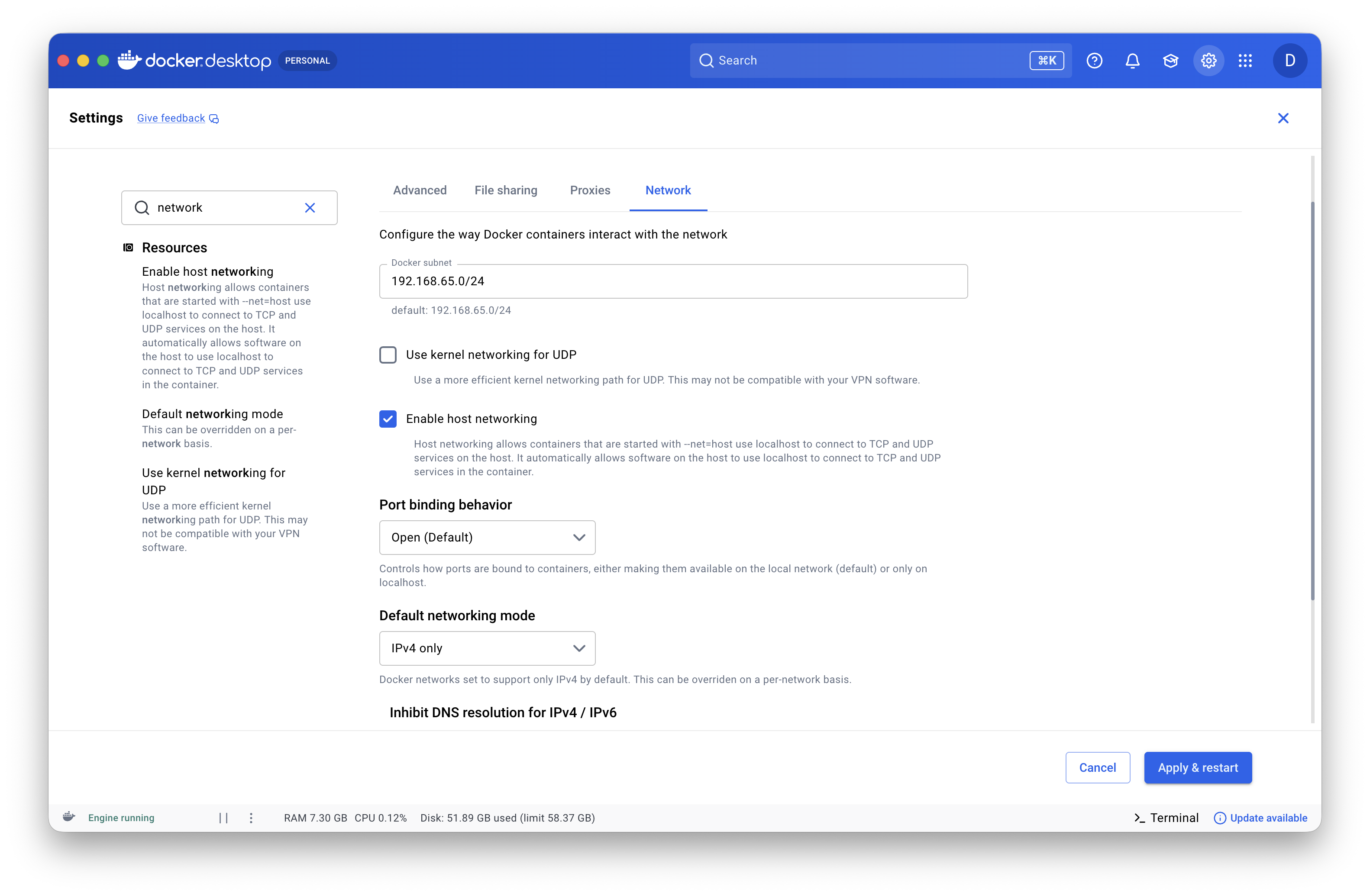
On macOS, host networking operates at the TCP/UDP level only — lower-level protocols are not supported. This is sufficient for simulation but may limit some features that rely on the physical robot’s network.
3. GUI forwarding
macOS has no native X server, so GUI windows (RViz, MuJoCo, etc.) do not forward automatically the way they do on Linux. Use the bundled KasmVNC browser desktop — see Browser Desktop via VNC above. It runs an XFCE session inside the container that you view in your browser at localhost:8444, with no extra X server to install on the host.
Customising the Workspace
The following files can be modified to tailor the environment to your needs:
environment/Dockerfile.dev— Add system packages and productivity tools (e.g.autojump,htop)..devcontainer/devcontainer.json— Add VSCode extensions and Dev Container features.environment/shell/.bashrc— Add shell aliases and functions.
Tips & Tricks
Tmux
Tmux is a terminal multiplexer that allows multiple pseudo-terminals from a single session. It is particularly useful when connecting to the physical robot via SSH, as it keeps processes running even if the connection drops.
- Mouse mode is enabled by default — use the mouse to switch panes and scroll.
- Pane synchronisation can be toggled with
Ctrl+bthenCtrl+s, allowing you to type the same command across multiple panes simultaneously.
Git Version Control
Git is essential for tracking changes and coordinating work across the team. If you are new to version control, refer to the official Git documentation for a thorough introduction.
Shell & Terminal
The export Command
export makes a variable visible to subprocesses started from the current shell. For example, export ROS_DOMAIN_ID=10 ensures that child processes (such as ROS 2 nodes) inherit this value. Without export, the variable remains local to the current shell.
Reverse History Search
Use Ctrl+r to search your command history interactively. The workspace integrates fzf by default for an enhanced reverse-search experience.
Tab Completion
bash is the default shell. Press Tab to auto-complete commands, file paths, directory names, and ROS 2 launch parameters. Press Tab twice to list all possible completions.